
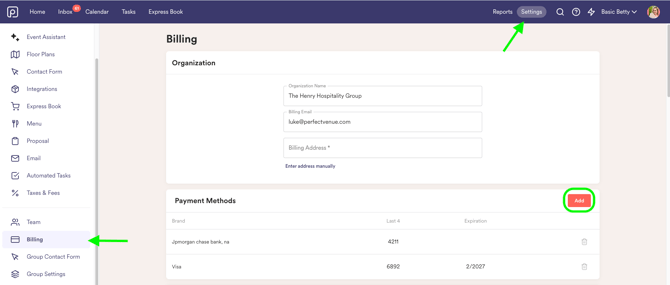
Step 1: Navigate to Billing Settings
-
Log in to your account.
-
Go to Settings and select Billing from the menu.
Step 2: Add a New Payment Method
-
Locate the Payment Methods box.
-
Click Add New Payment Method and enter your new credit card details.
-
Save the new payment method to ensure it is available for use.
Step 3: Apply the New Payment Method to Your Subscription
-
Find your active subscription in the Venues section.
-
Open the venue tile and click "Change Payment Method" next to your subscription.
-
Select the newly added payment method to update the card applied to your subscription.
-
Save your changes.
I updated my card after a failed payment. What happens next?
Make sure you have applied the new card to the affected venue’s subscription using Change Payment Method. Adding a card to Payment Methods alone does not complete that step.
If a subscription payment is still outstanding or you still cannot access your account, contact support@perfectvenue.com so we can review the failed payment and help retry it.
Once the payment succeeds and your subscription is active again, refresh Perfect Venue to check your access.
Your payment method is now updated! If you encounter any issues, please contact customer support for further assistance.
Note: For invoices, the billing email, adding a venue and changing plans, see Your Subscription: Invoices, Billing Email, Adding a Venue and Changing Plans.